Calibration
This guide explains how to calibrate Crimpdeq for accurate measurements.
You can calibrate in two ways: with the Crimpdeq app or nRF Connect.
The Crimpdeq app is recommended because it is simpler and gives visual feedback.
Using Crimpdeq App
Prerequisites
- Crimpdeq app on your platform:
- Web version (no installation): Crimpdeq web app
- Not all browsers support WebBluetooth. Check browser compatibility.
- Native builds from the latest release: crimpdeq-app/releases/latest
- Android:
crimpdeq-app-v<x.y.z>.apk - macOS:
crimpdeq-app-v<x.y.z>-macos.zip - Windows:
crimpdeq-app-v<x.y.z>-windows.zip - Linux:
crimpdeq-app-v<x.y.z>-linux.zip
- Android:
- Web version (no installation): Crimpdeq web app
- A stable mounting point so the device hangs freely and remains still
- One known weight (ideally near your typical maximum load)
Calibration Steps
-
Connect to Crimpdeq
- Launch the Crimpdeq app and grant permission to access device location (required for Bluetooth).
- Tap Scan to pair with your device.
- Once connected, the app shows device info (firmware version, battery, and current calibration).
-
Add calibration points
- Open the Calibration tab.
- For each point:
- Hang the corresponding load on the device (or leave it empty for zero).
- Enter the weight value in the app and tap Add Calibration Point.
- Recommended: Add at least 2 points—zero (nothing hanging) and full scale (the maximum weight you expect to measure). The device supports up to 20 calibration points for finer accuracy.
-
Check the result
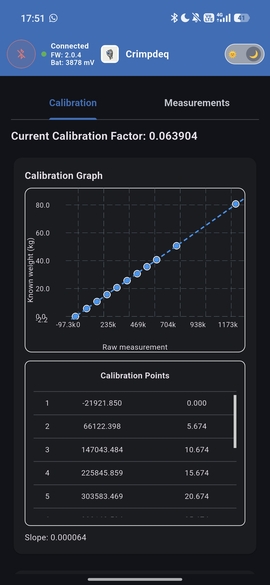
- After adding at least 2 points, the app displays the current calibration curve. Confirm it matches your expectations.
Using nRF Connect
Prerequisites
- nRF Connect installed on your platform:
- A stable mounting point so the device hangs freely and remains still
- One known weight (ideally near your typical maximum load)
Calibration Steps
- Connect to Crimpdeq with nRF Connect:
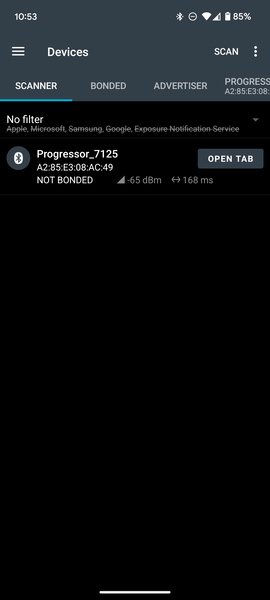
- Launch the app and go to the Scanner tab.
- Find your device (for example,
Progressor_7125) and tap “Connect”. - Once connected, the app will display the device’s services and characteristics.
- Locate the calibration characteristic:
- Expand Unknown Service.
- Find the characteristic with UUID:
7e4e1703-1ea6-40c9-9dcc-13d34ffead57.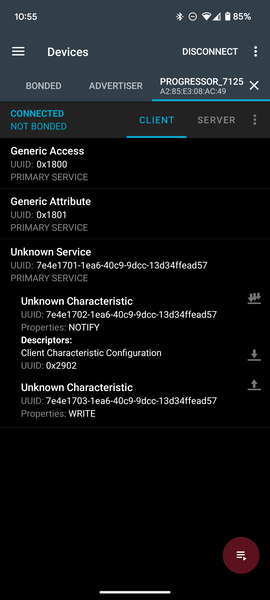
- Compute the hex value of your known weight:
- Open the Floating Point to Hex Converter.
- Select “Single-precision” (32-bit) floating point.
- Enter your known weight in the “Float value” field (in kilograms unless your device expects grams; see Important Notes).
- Click “Convert to hex” and save the resulting “Hex value”.
Example: 75.3 kg →
0x4296999a.
- Zero the device (tare):
- Hang Crimpdeq with no weight attached.
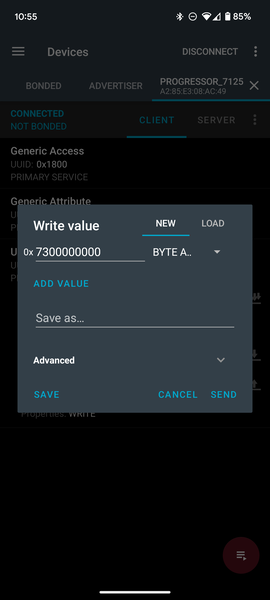
- Send the command
7300000000to the characteristic:- Tap the Up Arrow icon on the characteristic (
7e4e1703-1ea6-40c9-9dcc-13d34ffead57). - Enter the command as shown.
- Tap the Up Arrow icon on the characteristic (
- Perform the calibration:
- Commands and values are hex strings without spaces (letter case does not matter).
- Attach your known weight to Crimpdeq.
- Build the calibration command by prefixing
73to your hex value.- Example: For 75.3 kg (
0x4296999a), send:734296999a.
- Example: For 75.3 kg (
- Send this command to the same characteristic (
7e4e1703-1ea6-40c9-9dcc-13d34ffead57).
- You can add up to 20 calibration points. Repeat this step if you need higher accuracy.
- Verify:
- Remove the weight and reattach it.
- The reported value should be within a small tolerance of the known weight. If not, repeat steps 4-5.
Important Notes
- Units: Some devices expect the calibration value in grams instead of kilograms. If, after calibration, the measured value looks off by a factor of ~100 (e.g., 75.3 kg shows ~0.75), convert your known weight to grams and repeat step 5.
- Use a weight close to the maximum load you expect to measure (while staying within device limits) for best accuracy.
- Ensure the device is stable and stationary when sending commands.
- Perform calibration in a controlled environment (avoid wind, vibration, and temperature swings).